



OpenClaw presents itself as a "universal application platform" designed to simplify the deployment, scaling, and management of applications, regardless of the underlying infrastructure. At its core, OpenClaw aims to abstract away the complexities of cloud providers, Kubernetes, and container orchestration, allowing developers to focus purely on their code.
The OpenClaw website highlights a key problem: the increasing complexity of modern infrastructure. Developers often find themselves spending more time managing servers, containers, and cloud configurations than actually building features. OpenClaw's promise is to provide a unified platform that makes deployment "boringly simple," while also offering the flexibility to run applications anywhere—from your local machine to private data centers or public clouds.
This guide will walk you through setting up your first OpenClaw chat application, from initial installation to a fully functional conversational agent. Our goal is to get you up and running as quickly as possible, with sensible defaults for a seamless experience.
For an immediate chat experience without any channel configuration, simply open the OpenClaw Control UI.
openclaw dashboard in your terminal.http://127.0.0.1:18789/ on the gateway host.For a more flexible setup, including model authentication, gateway settings, and channel configuration, we recommend using the CLI onboarding wizard.
openclaw configure --section web.The installation process involves sharing critical API keys. The platform has acknowledged that some security vulnerabilities still exist, so it is strongly recommended to consult with security experts before installing it in your environment.
curl -fsSL https://openclaw.ai/install.sh | bash
iwr -useb https://openclaw.ai/install.ps1 | iex
npm install -g openclaw@latest
# OR
pnpm add -g openclaw@latest
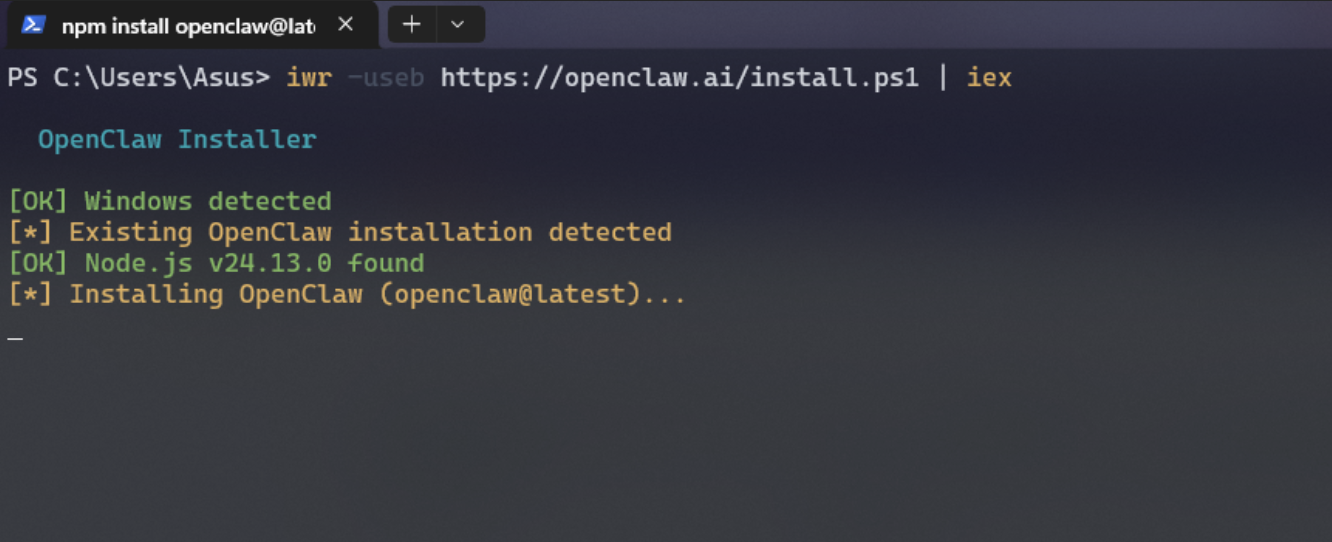
openclaw onboard --install-daemon
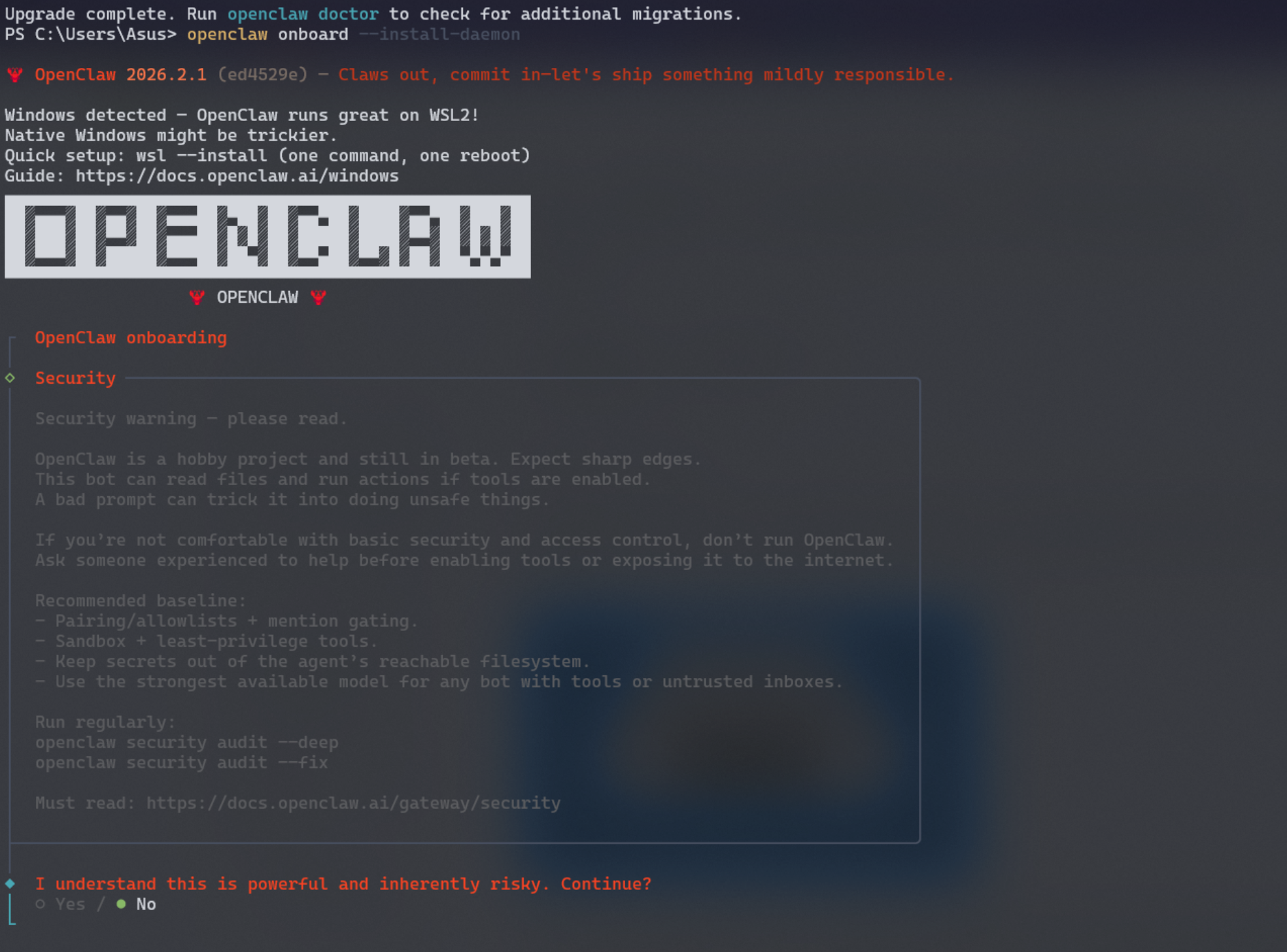
* The wizard will guide you through:
* Local vs. Remote Gateway: Choose your gateway deployment.
* Authentication: Select between OpenAI Code (Codex) subscription (OAuth recommended) or API keys. For Anthropic, API keys are recommended.
* Providers: Configure channels like WhatsApp (QR login), Telegram/Discord bot tokens, or Mattermost plugin tokens.
* Daemon: Install as a background service (launchd for macOS, systemd for Linux/WSL2).
* Runtime: Node.js is recommended and required for WhatsApp/Telegram.
* Gateway Token: The wizard will generate and store a gateway token.
~/.openclaw/credentials/oauth.json~/.openclaw/agents/<agentId>/agent/auth-profiles.jsonoauth.json to your gateway host.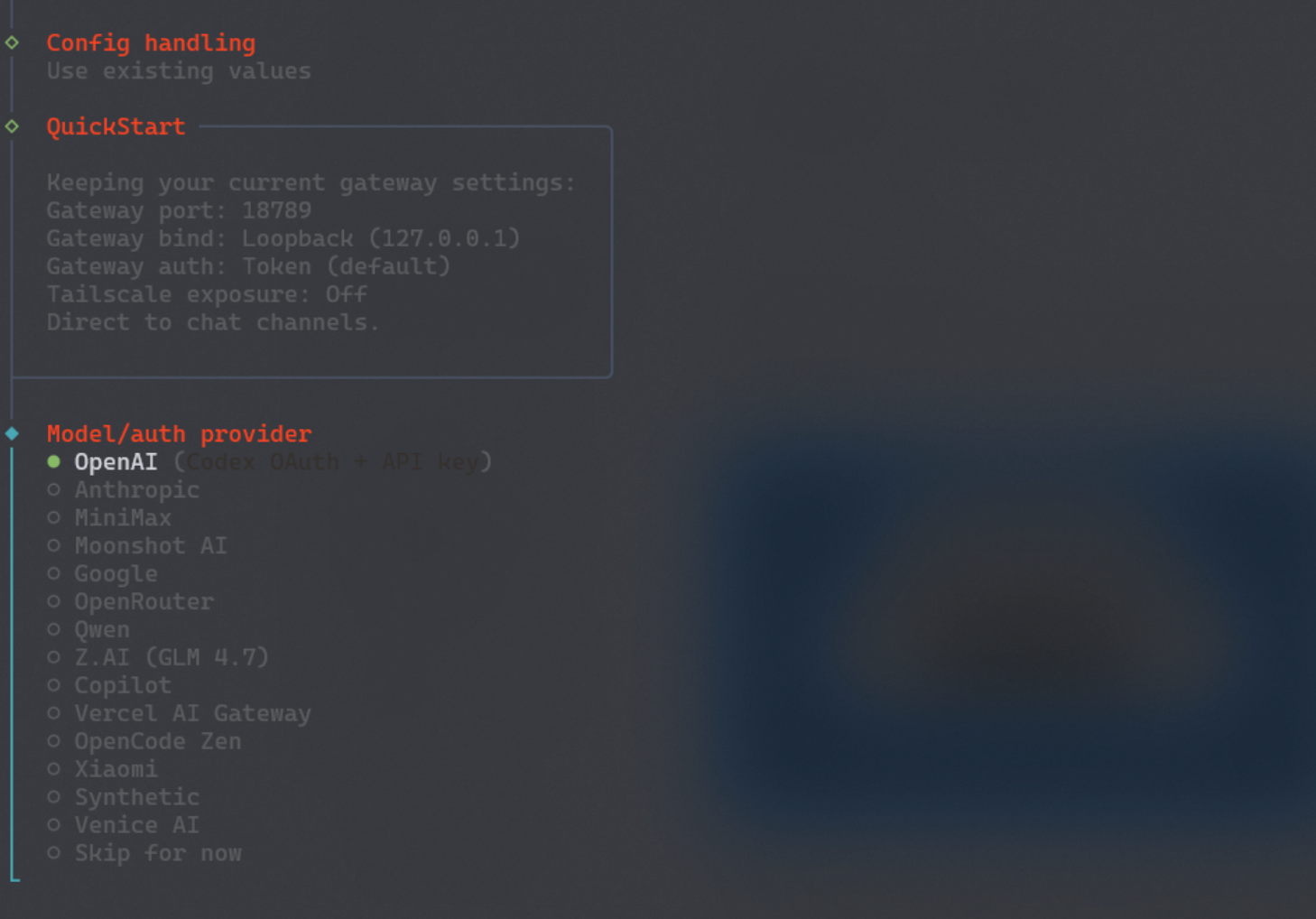
If you installed the service during onboarding, your Gateway should already be running.
openclaw gateway status
openclaw gateway --port 18789 --verbose
http://127.0.0.1:18789/
connect.params.auth.token).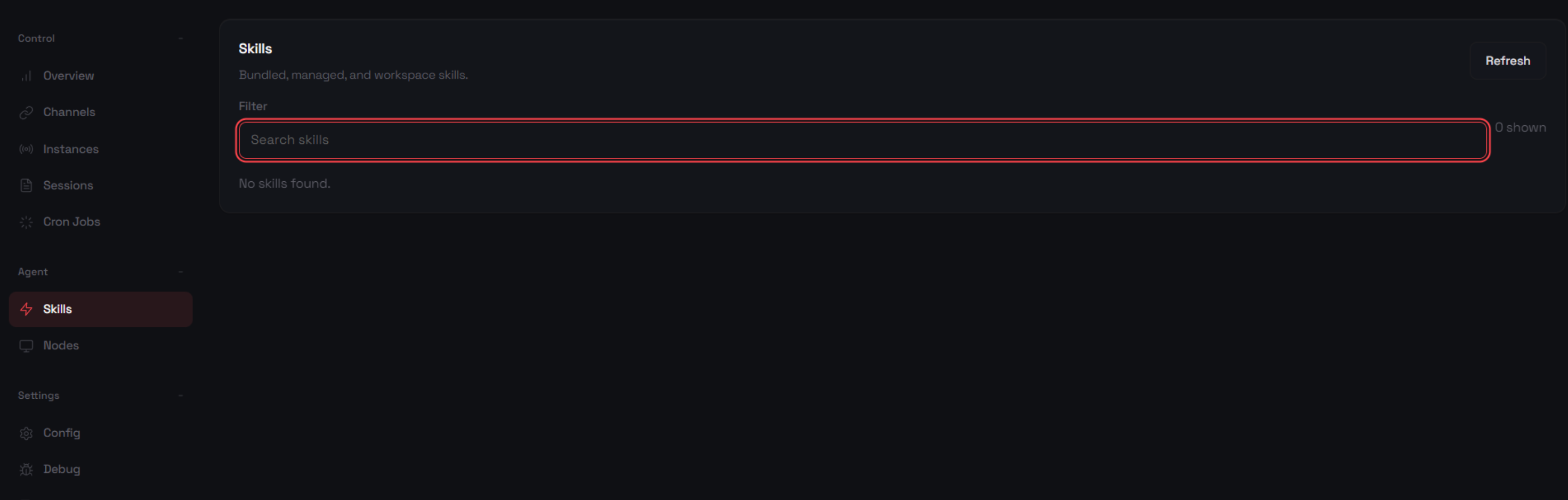
Perform a quick system check to ensure everything is configured correctly.
openclaw status
openclaw health
openclaw security audit --deep
openclaw channels login
Scan the QR code via WhatsApp → Settings → Linked Devices.
Your first direct message will return a pairing code. You must approve it for the bot to respond.
By default, direct messages from unknown contacts receive a short code, and messages are not processed until approved.
openclaw pairing list whatsapp
openclaw pairing approve whatsapp <code>
If you're contributing to OpenClaw, follow these steps to run from the source code.
git clone https://github.com/openclaw/openclaw.git
cd openclaw
pnpm install
pnpm ui:build # Auto-installs UI dependencies on first run
pnpm build
openclaw onboard --install-daemon
pnpm openclaw ... from the repo for onboarding.pnpm build also bundles A2UI assets. To run just that step, use pnpm canvas:a2ui:bundle.node openclaw.mjs gateway --port 18789 --verbose
Send a test message to confirm your setup is fully functional.
openclaw message send --target <your contact number> --message "Hello from OpenClaw"
OpenClaw acts as the bridge between your chosen messaging platform and your Pi agent, enabling seamless communication and execution of tasks. This "personal assistant" configuration dedicates one WhatsApp number to your agent, ensuring focused and direct interaction.
Before diving into the setup, it's crucial to understand the capabilities and potential risks associated with empowering a digital agent. Your OpenClaw agent, depending on its configuration, can:
To mitigate these risks, a conservative approach is highly recommended:
channels.whatsapp.allowFrom to a specific list of trusted numbers. Never expose your personal Mac to an "open-to-the-world" setup.agents.defaults.heartbeat.every: "0m" until you have full confidence in your agent's behavior and configuration.Installation is straightforward:
npm install -g openclaw@latest
# Or, if you prefer pnpm:
pnpm add -g openclaw@latest
For those interested in development or running from source:
git clone https://github.com/openclaw/openclaw.git
cd openclaw
pnpm install
pnpm ui:build # Auto-installs UI dependencies on first run
pnpm build
pnpm link --global
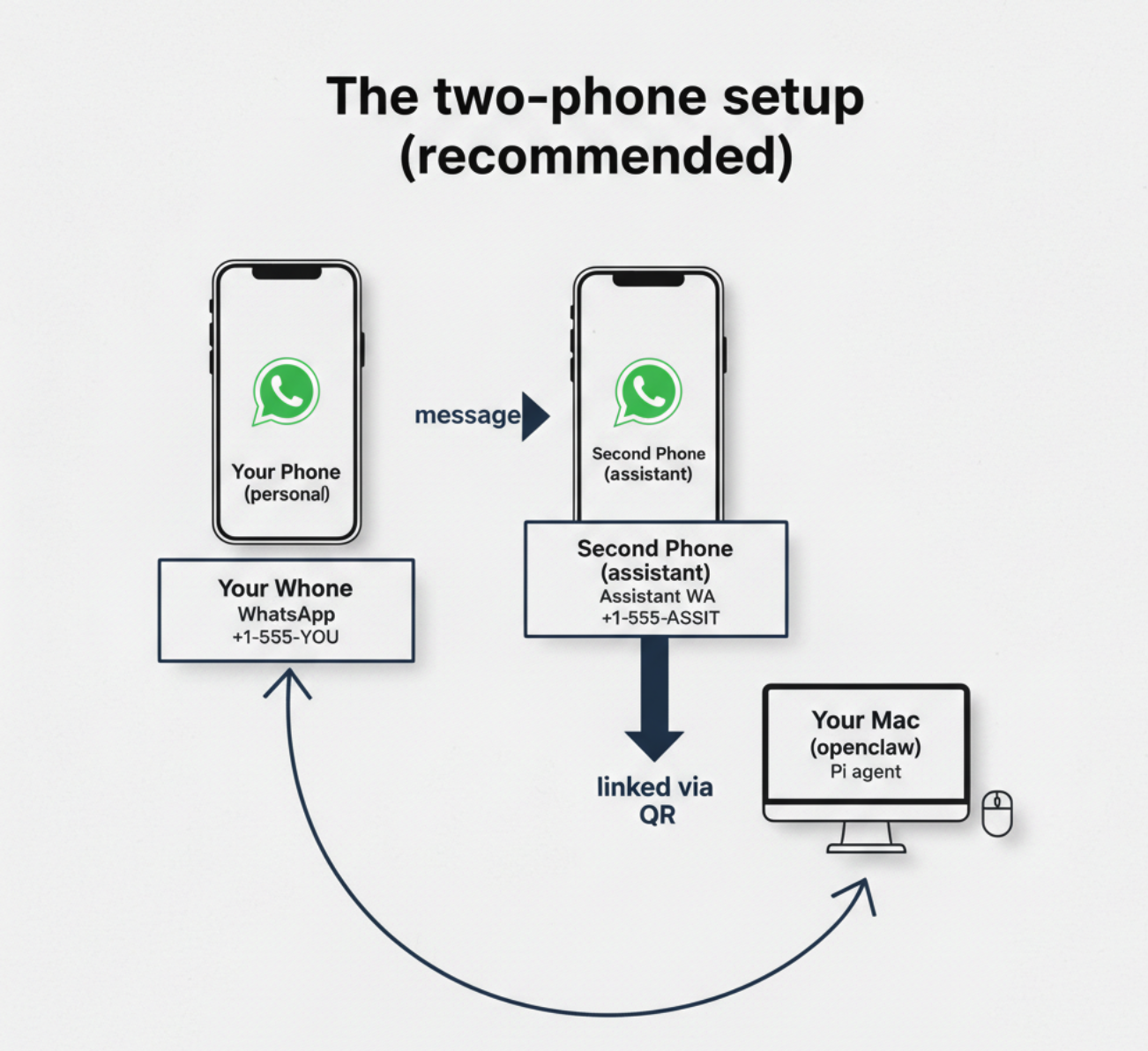
Pair WhatsApp Web (shows QR; scan with the assistant phone):
openclaw channels login
Start the Gateway (leave it running):
openclaw gateway --port 18789
Put a minimal config in ~/.openclaw/openclaw.json:
{
  channels: { whatsapp: { allowFrom: ["your phone number"] } },
}
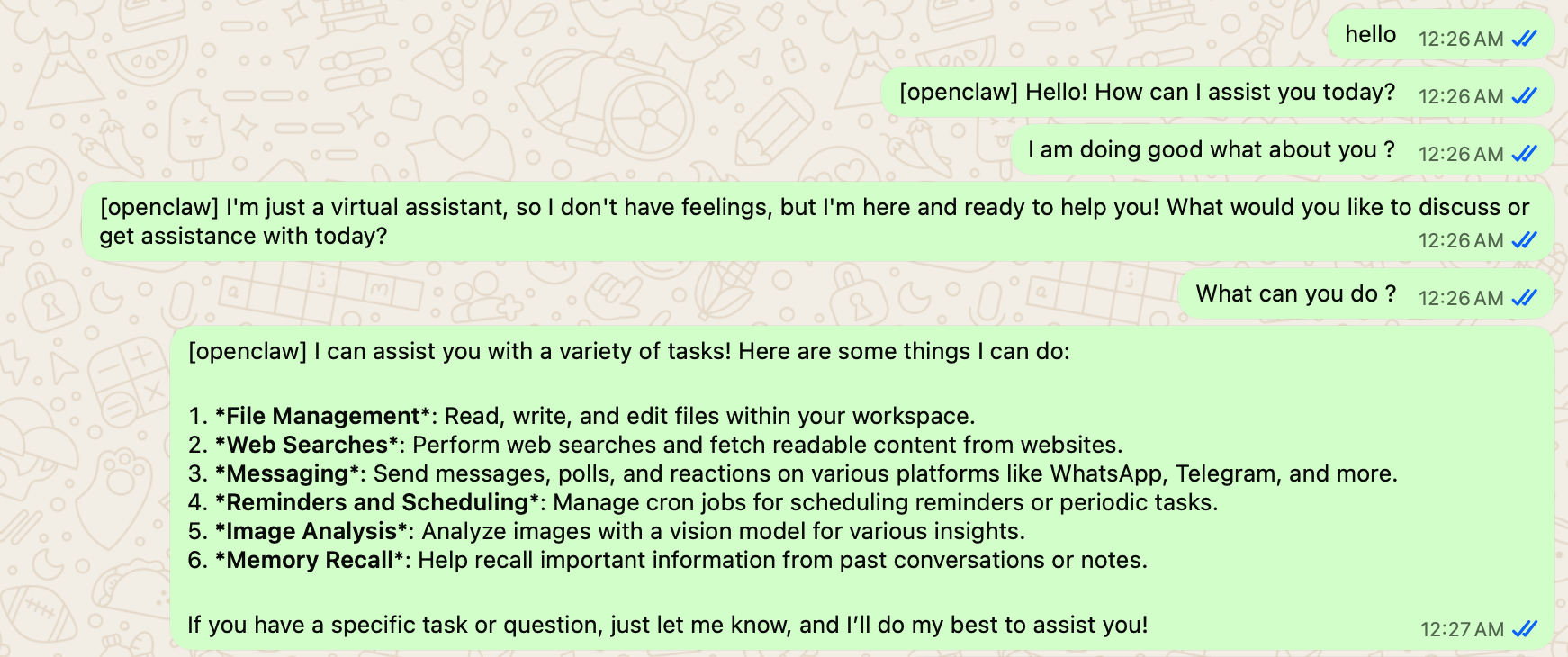
Now message the assistant number from your allowlisted phone.
When onboarding finishes, we auto-open the dashboard with your gateway token and print the tokenized link.
For optimal separation and to prevent unintended agent input from your personal messages, the two-phone setup is highly recommended.
In conclusion, OpenClaw provides an innovative and unified platform that significantly simplifies application deployment and management across diverse infrastructures. By abstracting away underlying complexities, it empowers developers to focus on what truly matters: writing code. Moltbot serves as the intuitive interface, translating intricate operations into straightforward commands, thereby embodying OpenClaw's commitment to "boringly simple" deployment.
This guide has walked you through the essential steps to get started, from initial installation via the CLI onboarding wizard to configuring gateways and channels like WhatsApp. With quick verification steps and options for both immediate chat experiences and in-depth development, you're now equipped to leverage OpenClaw's power. By following these instructions, you can swiftly deploy and manage your applications, experiencing firsthand the efficiency and flexibility that OpenClaw and Moltbot bring to modern development workflows.
